CogniAgent
Sign inGet started

Human Resources

AI Candidate Screening Agent

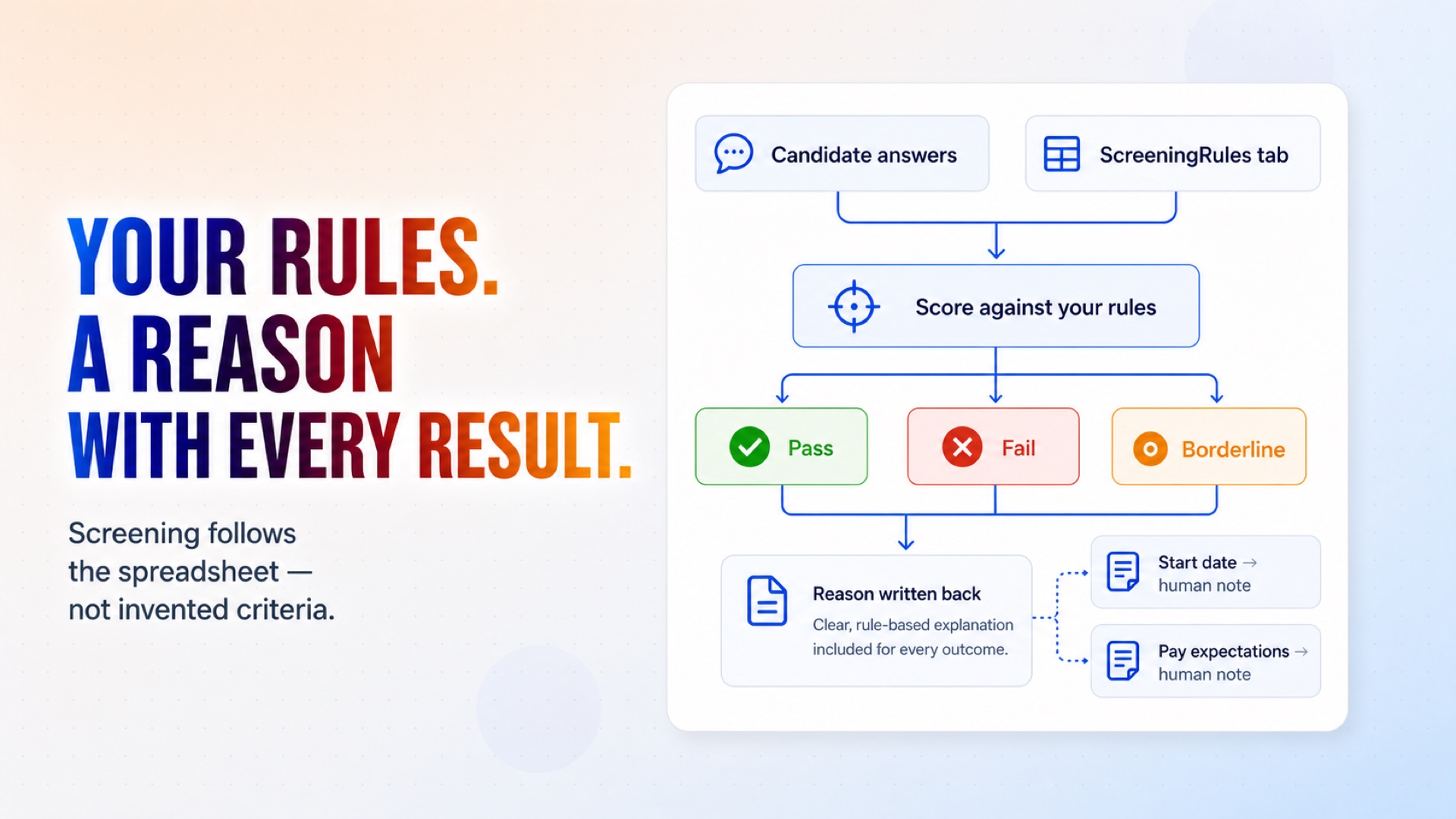
Screens applicants against the requirements you set, in your own words, and emails each one a short set of job-related questions. Answers are scored against rules you keep in a spreadsheet (not invented by the agent) and every pass, fail or borderline case is written back with the reason. Anything AI candidate screening agent is not sure about goes to a recruiter instead of being decided.
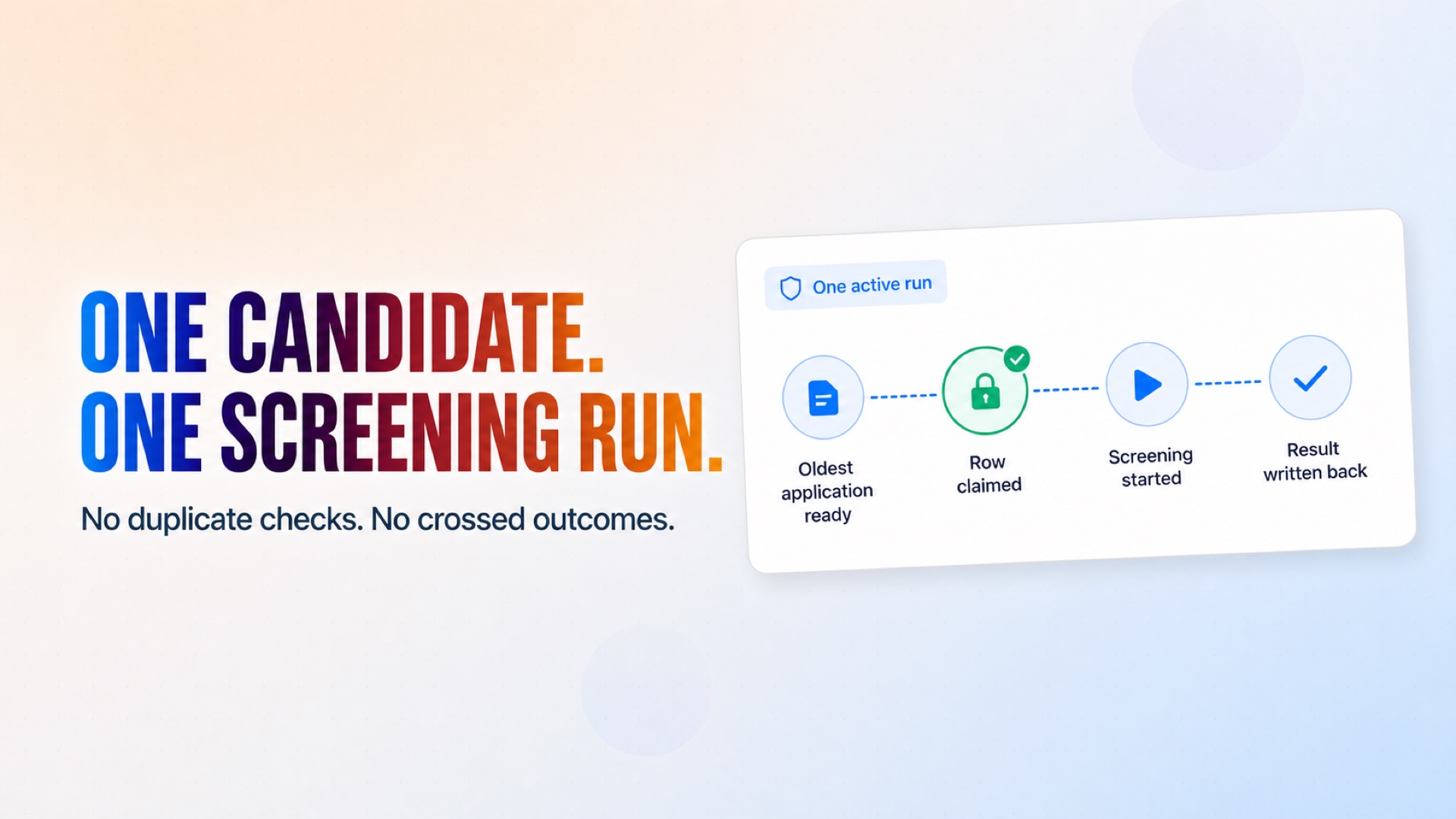
Claim each application before screening to prevent duplicate checks and crossed outcomes.

Claim each application before screening to prevent duplicate checks and crossed outcomes.

How it works

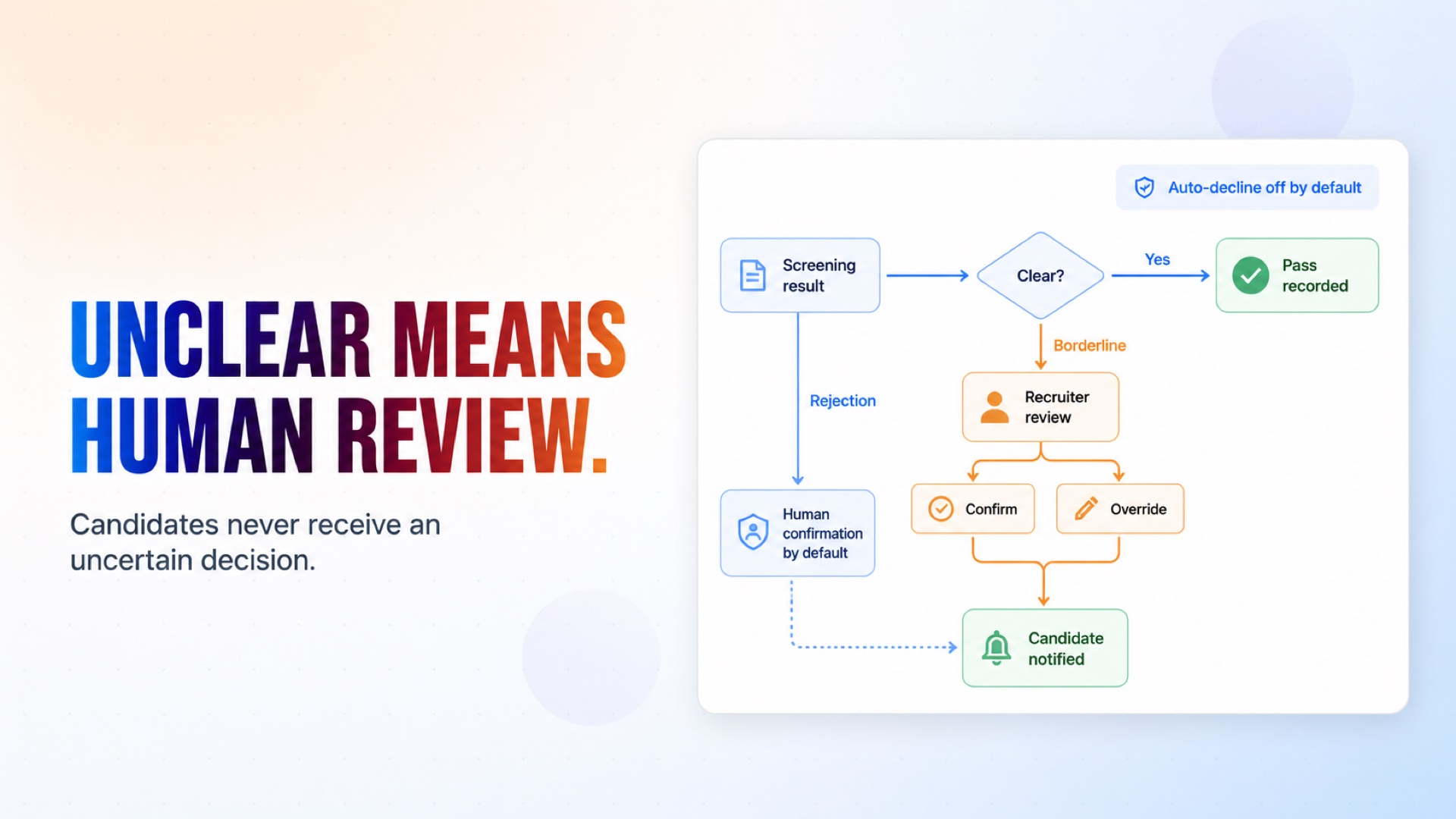
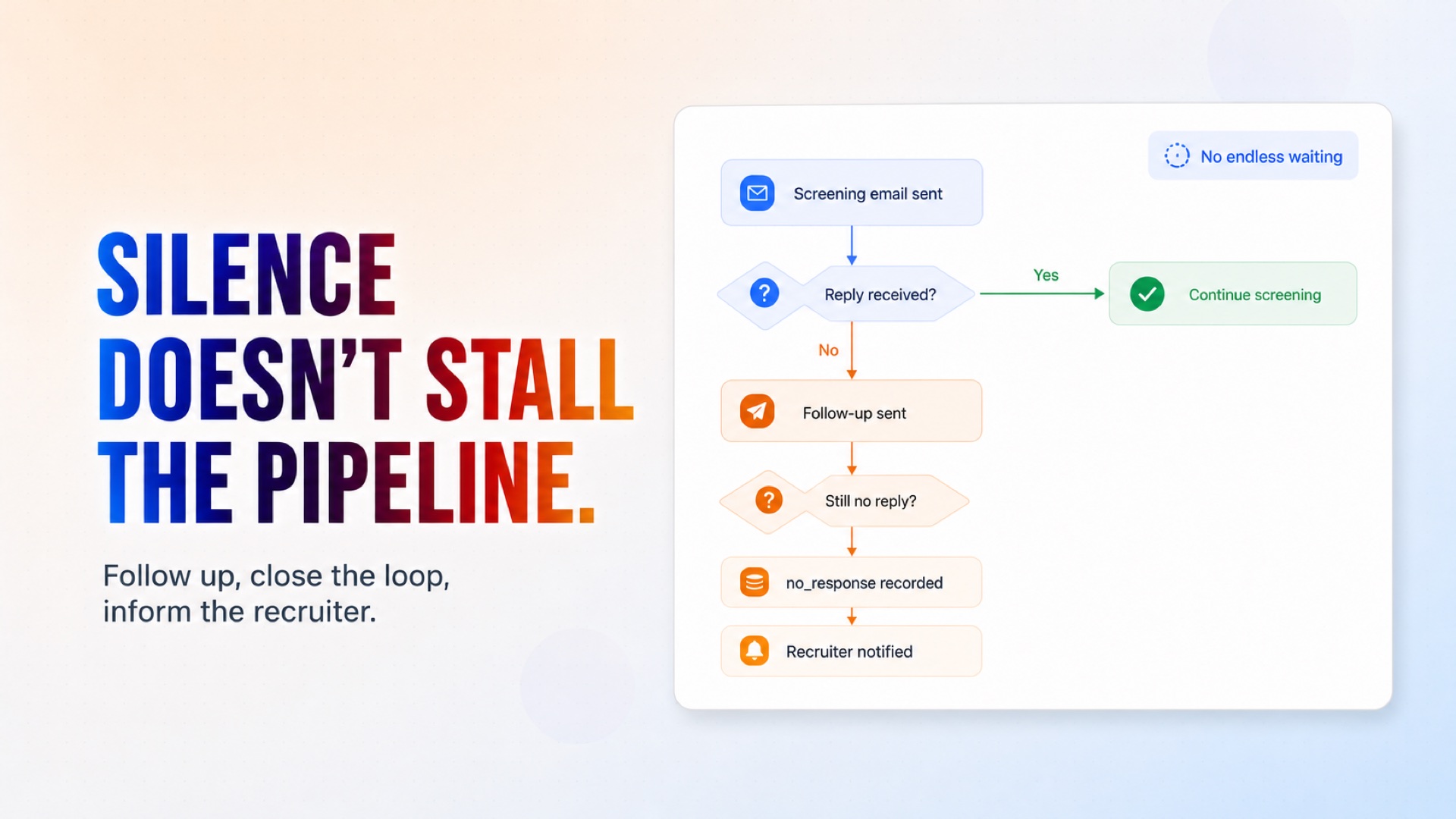
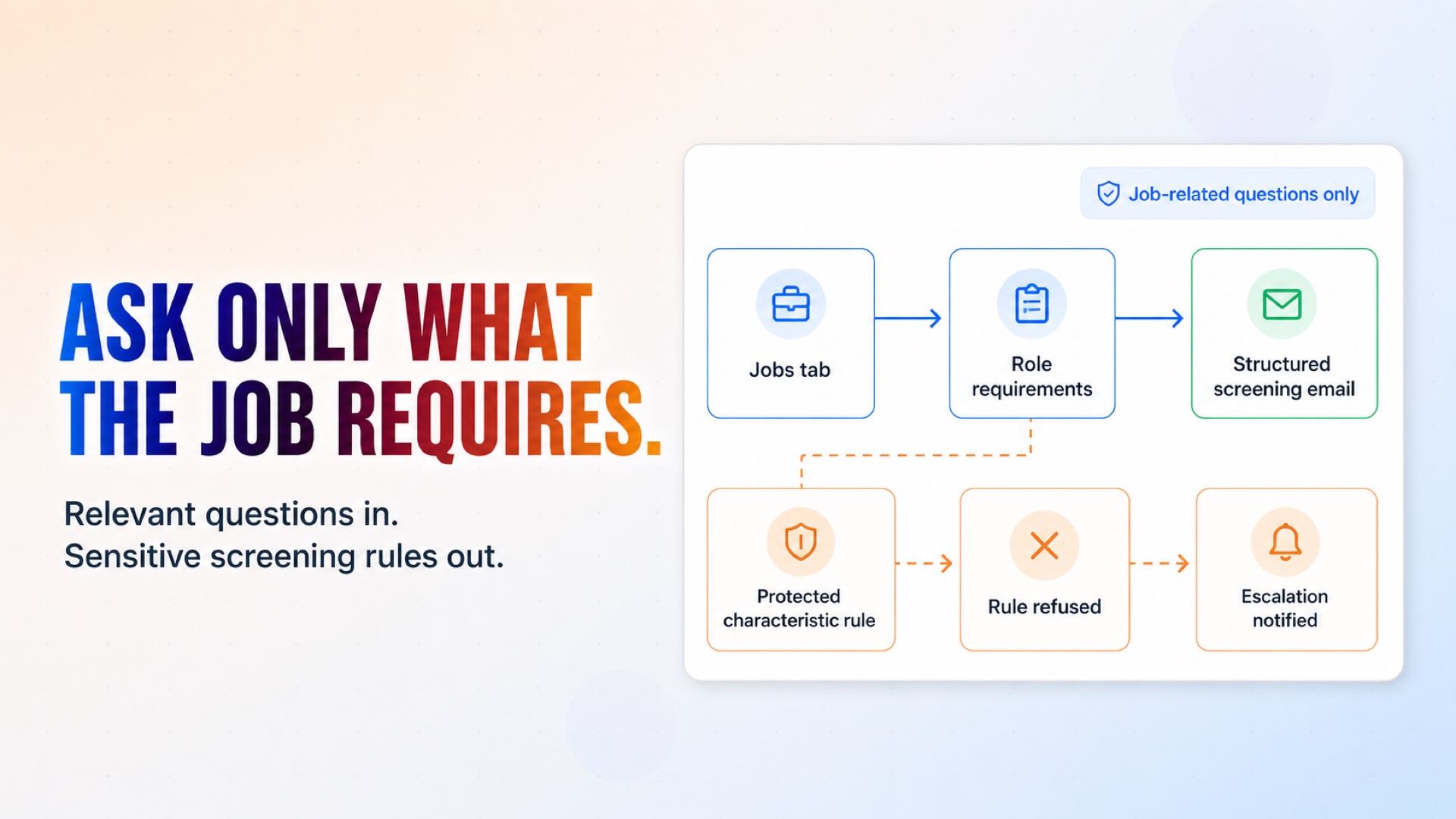
1. Provisioning, once. On its first run the agent looks in your Google Drive for a workbook called "CogniAgent Recruiting Data". If it is not there it creates it, adds the six tabs it needs with headers and a few sample rows, and removes the empty default sheet Google adds. Run it again (or install it again) and it reuses the same workbook rather than making a second one. 2. One candidate per check. Every five minutes candidate screening AI agent takes the oldest application marked for screening and claims the row before doing anything else, so two runs can never process the same person twice. 3. The questions. It emails the candidate the screening questions for the job they applied to, taken from the Jobs tab. It asks only what the job requires, and it will not ask about protected or sensitive characteristics — if a rule you wrote names one, it refuses that rule and tells your escalation address why. 4. The decision. Answers are scored against the ScreeningRules tab: required skills and work authorisation are hard requirements; start date and pay expectations are noted for a human rather than used to reject anyone. The result is written back with the reason in plain language. 5. A human sees anything unclear. Borderline results go to a recruiter for review before the candidate hears anything. Out of the box, every rejection is confirmed by a person — automatic declines are off until you turn them on. 6. Silence is handled. If a candidate never replies, the agent follows up, then records "no_response" and tells the recruiter. It does not leave the row waiting forever.

What's included

The key things this template does for you.

A recruiting workbook created in your own Drive on the first run

Screening rules you edit in a spreadsheet, not in the agent

One structured screening email per candidate, in your company's name

Pass, fail and borderline results written back with the reason

Recruiter review before any rejection, unless you enable auto-decline

A refusal path for rules that would screen on protected characteristics

Installation

What setting this up involves.

1

Connect Google Sheets — the agent creates and maintains its own workbook.

2

Connect the Gmail account screening emails should come from.

3

Enter your company name, the recruiter's name and email, and an escalation address.

4

Set your time zone and the data-retention notice candidates should see.

5

Open the workbook it creates and fill in the Jobs and ScreeningRules tabs. The sample rows show the shape; replace them with your own.

6

Add a candidate to the Applications tab with next_action set to screen to watch one run end to end.

~5 min to launch

Free to start. You will sign in first, then set it up.

Connect 2 tools, fill in a few details, and install it. No coding.

FUNCTION

Human Resources

TAGS

RecruitingHiringScreening#recruiting Bundle

Built by CogniAgent

Official template