
Operations
Automated Inventory Tracking Agent
Automated inventory tracking for cleaning businesses. Reads your supplies sheet every morning and emails you the items that are low or need repair \u2014 so shortages are caught before they bite.
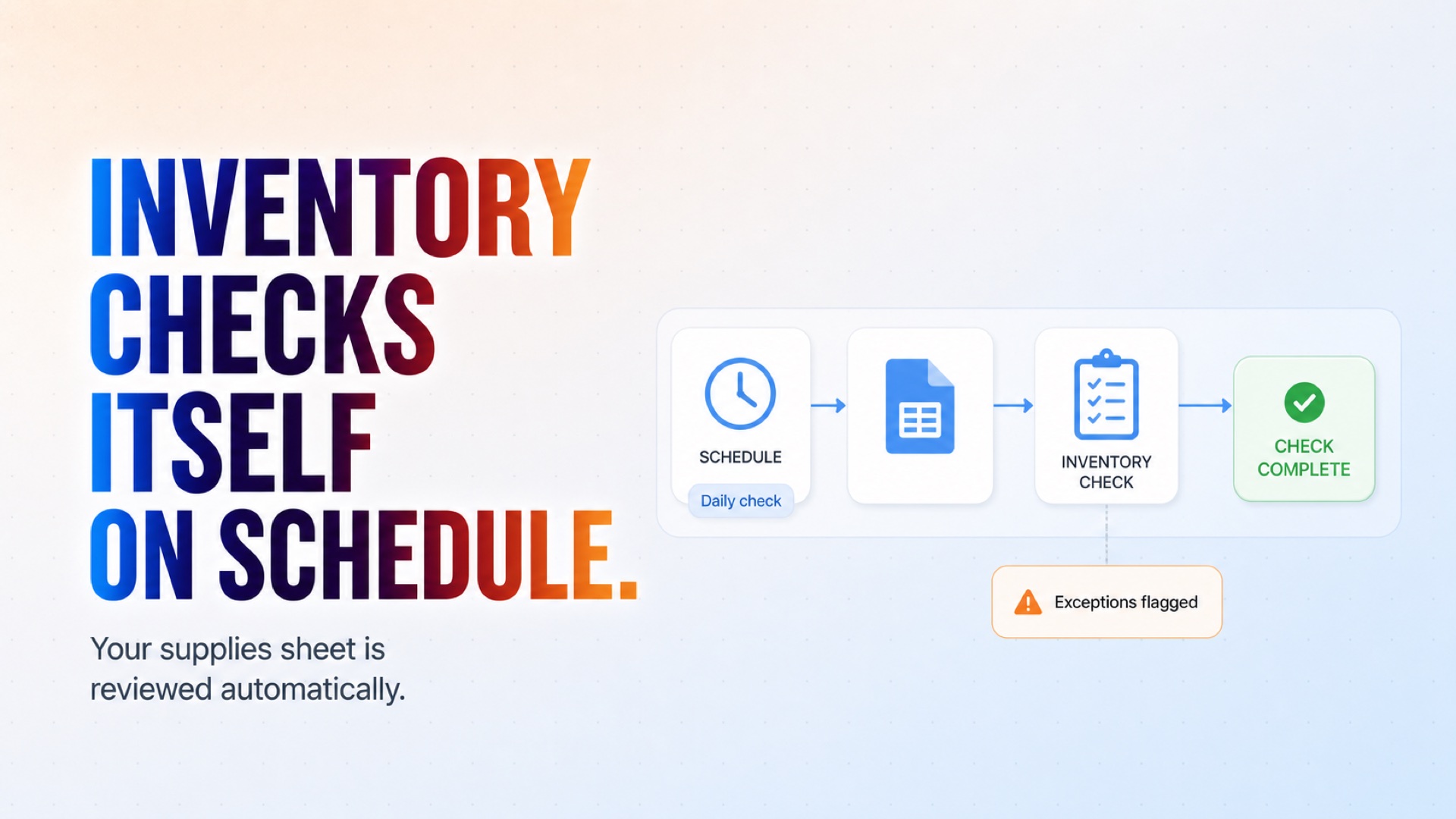
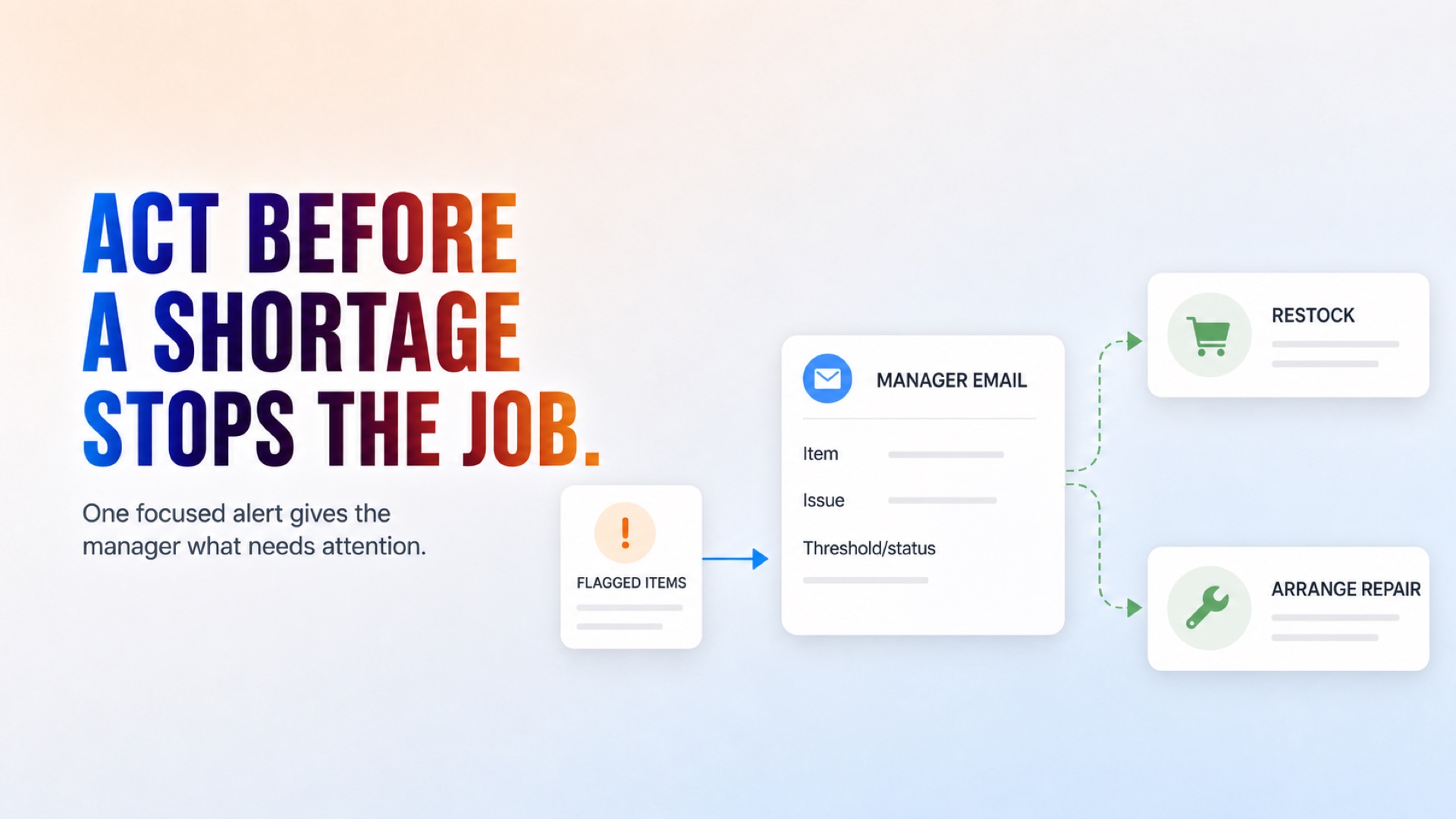
The supplies and equipment sheet is reviewed automatically at the configured interval.
How it works
What's included
The key things this template does for you.
A daily 08:00 check of your supplies and equipment sheet
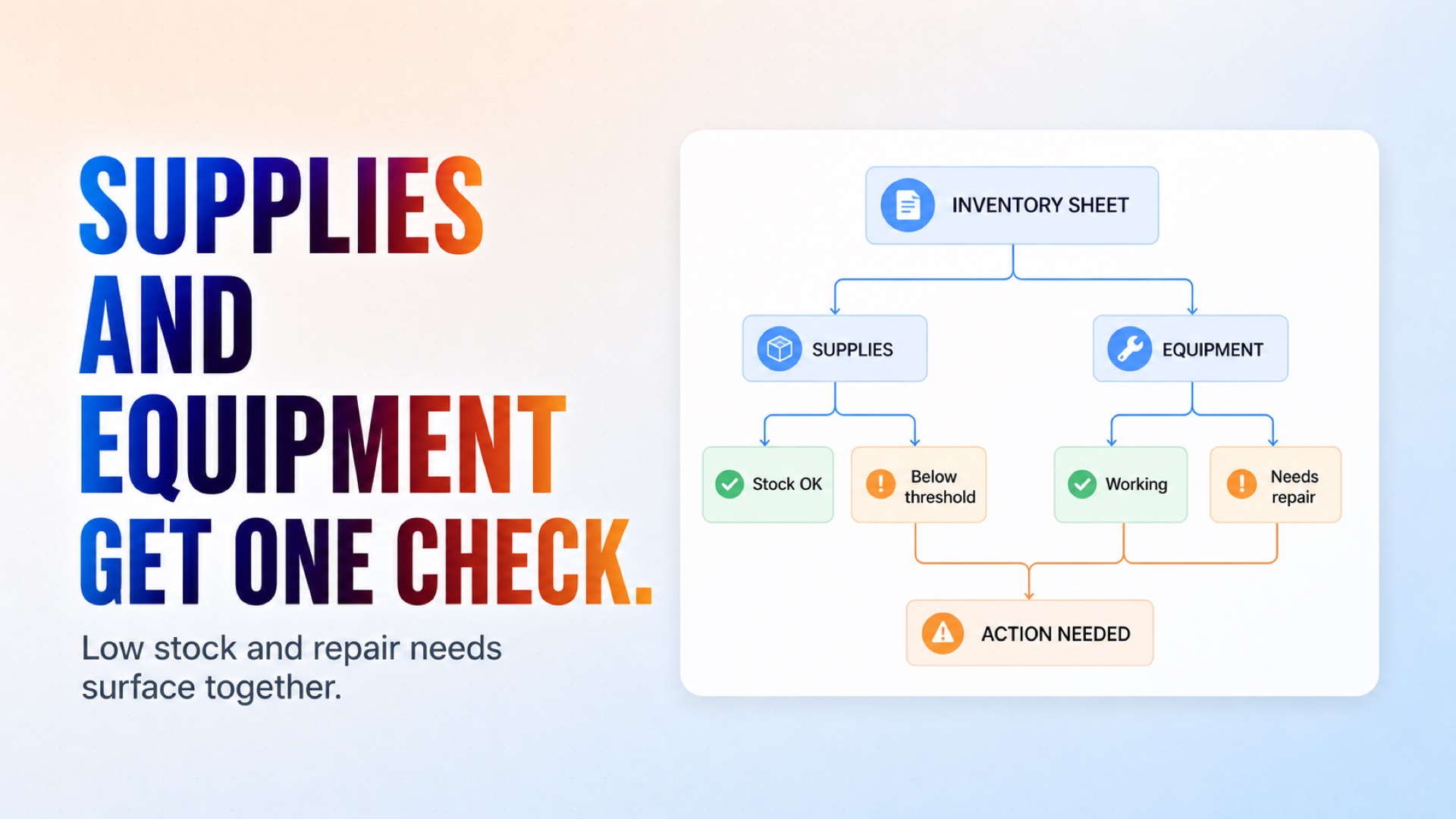
Automatic low-stock alerts before items run out
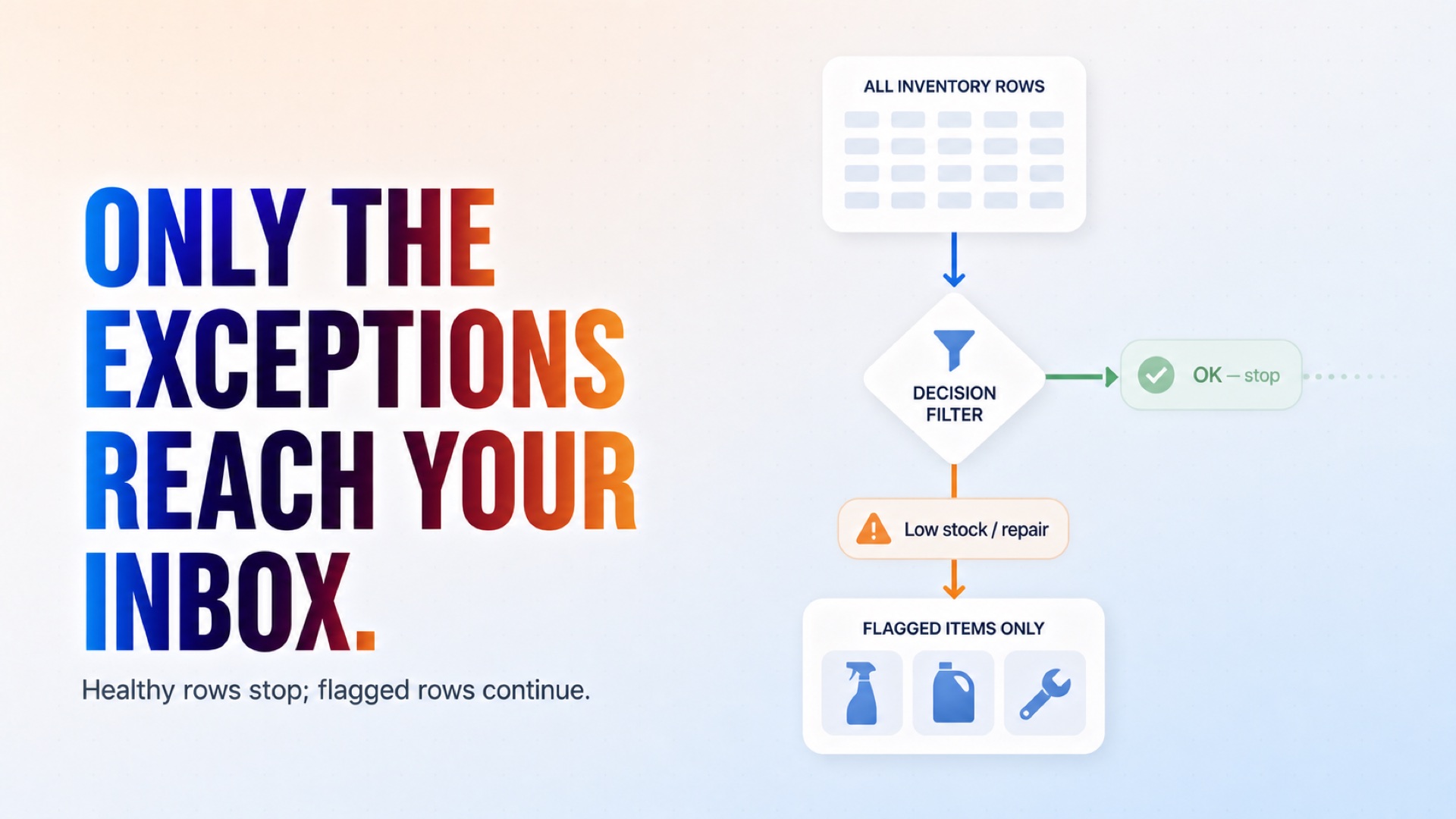
One email to the address you nominate, listing only the flagged rows
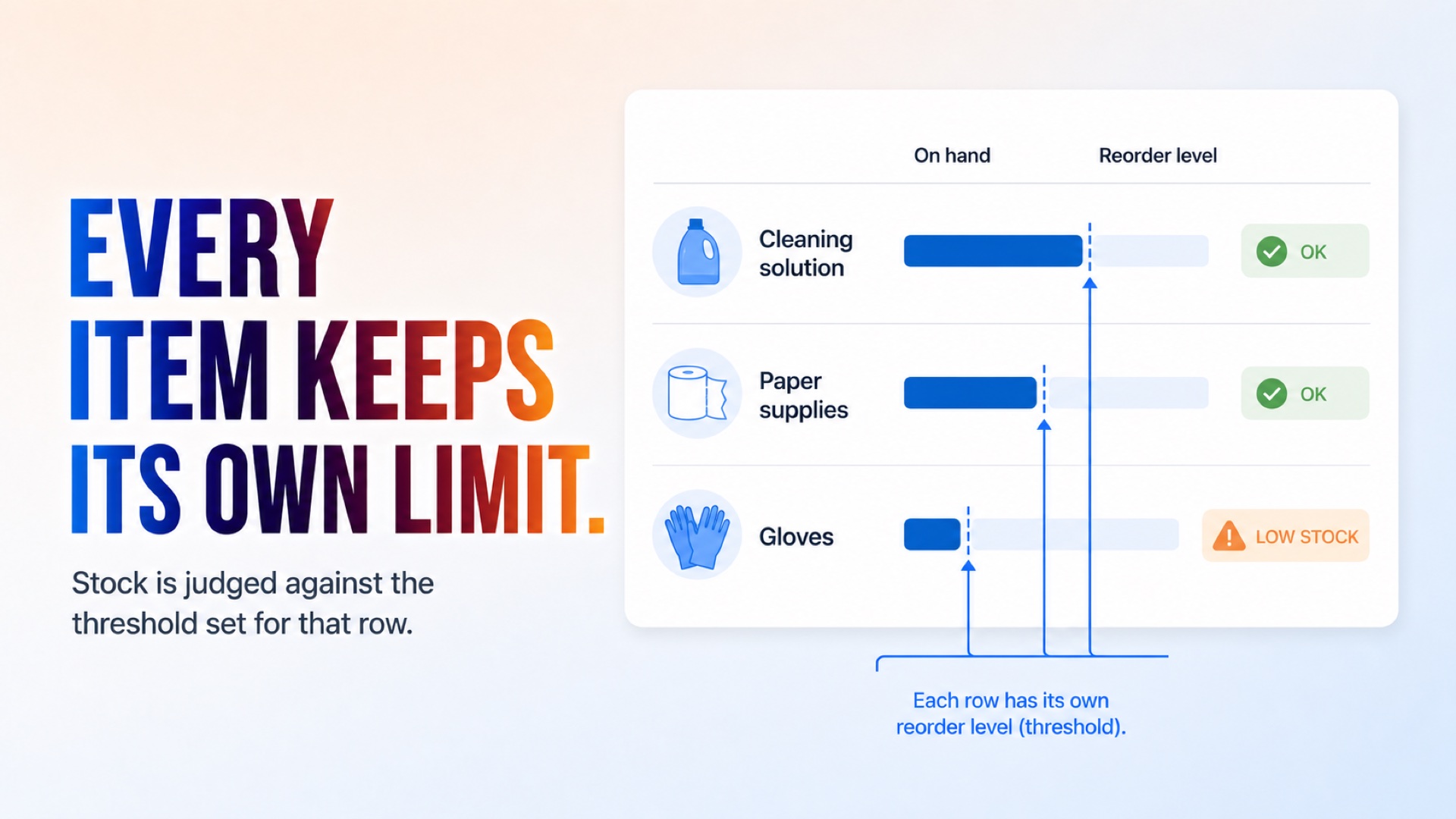
Every row judged against its own Reorder Level, so each item keeps its own threshold
Installation
What setting this up involves.
Open Scheduled Inventory Check and set the preferred frequency, time of day, and timezone you want this workflow to start. For example, daily at 08:00 UTC.
Open Read Inventory Data (Google Sheets) and select your Google Sheets Connection, or click + New to connect a Google account. Enter the Spreadsheet ID (found in the URL of your Google Sheet), then specify the Cell Ranges to pull data from. For example, Inventory!A1:L31 to cover all inventory rows and columns in the "Inventory" tab.
Open Detect Low Stock or Equipment Issue and review the condition, set in AI mode using natural language. By default, it flags any inventory row where quantity on hand falls below its reorder threshold, or any equipment row with a status other than "OK"/"Working" (e.g., "Needs Repair," "Broken"). Adjust this wording to match your own column names and thresholds, or switch to Manual mode to build the condition with structured AND/OR rules instead.
Open Extract Flagged Items. This node runs a pre-built Python script that pulls the value ranges out of the Google Sheets response and identifies which rows were flagged as low stock or equipment issues. No configuration is needed here — the code is already set up to handle variations in how the spreadsheet data is returned. If you customize your sheet's structure significantly, you can click Generate with AI to regenerate the script to match.
Open Notify Manager and enter the Primary recipient's email address — the manager who should receive restock alerts. Add any additional "To" recipients or BCC addresses if others need to be notified. The Email subject line and Email content are pre-filled using dynamic variables ({{extract_flagged_items.result.task_title}} and {{extract_flagged_items.result.summary_text}}) that automatically pull in the flagged item details, so no manual writing is needed. Leave "Does the email body contain HTML?" toggled off unless you've formatted the content with HTML.
~5 min to launch
Free to start. You will sign in first, then set it up.
Connect 2 tools, fill in a few details, and install it. No coding.
FUNCTION
OperationsTAGS
Built by CogniAgent
Official template