
Customer Service
Order Status & Tracking Agent
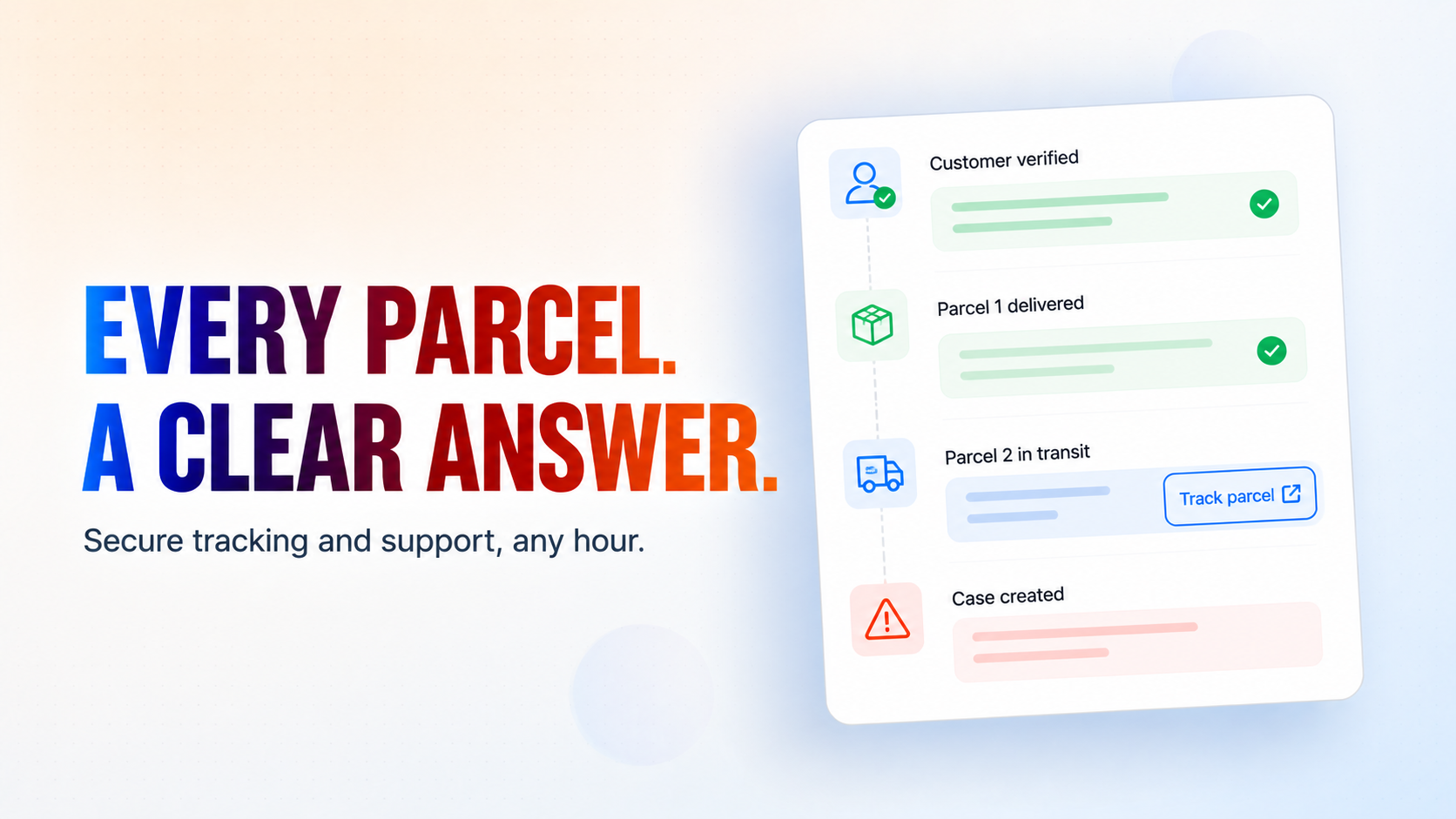
Answers "where is my order?" in your website chat, at any hour. It checks the customer against your own order records before it says anything at all, describes every parcel of a split delivery separately with its own tracking link, and turns a late, lost, damaged or undeliverable parcel into a case your team is emailed about — instead of a promise nobody can keep.
Verify First. Reveal Nothing Early.
How it works
What's included
The key things this template does for you.
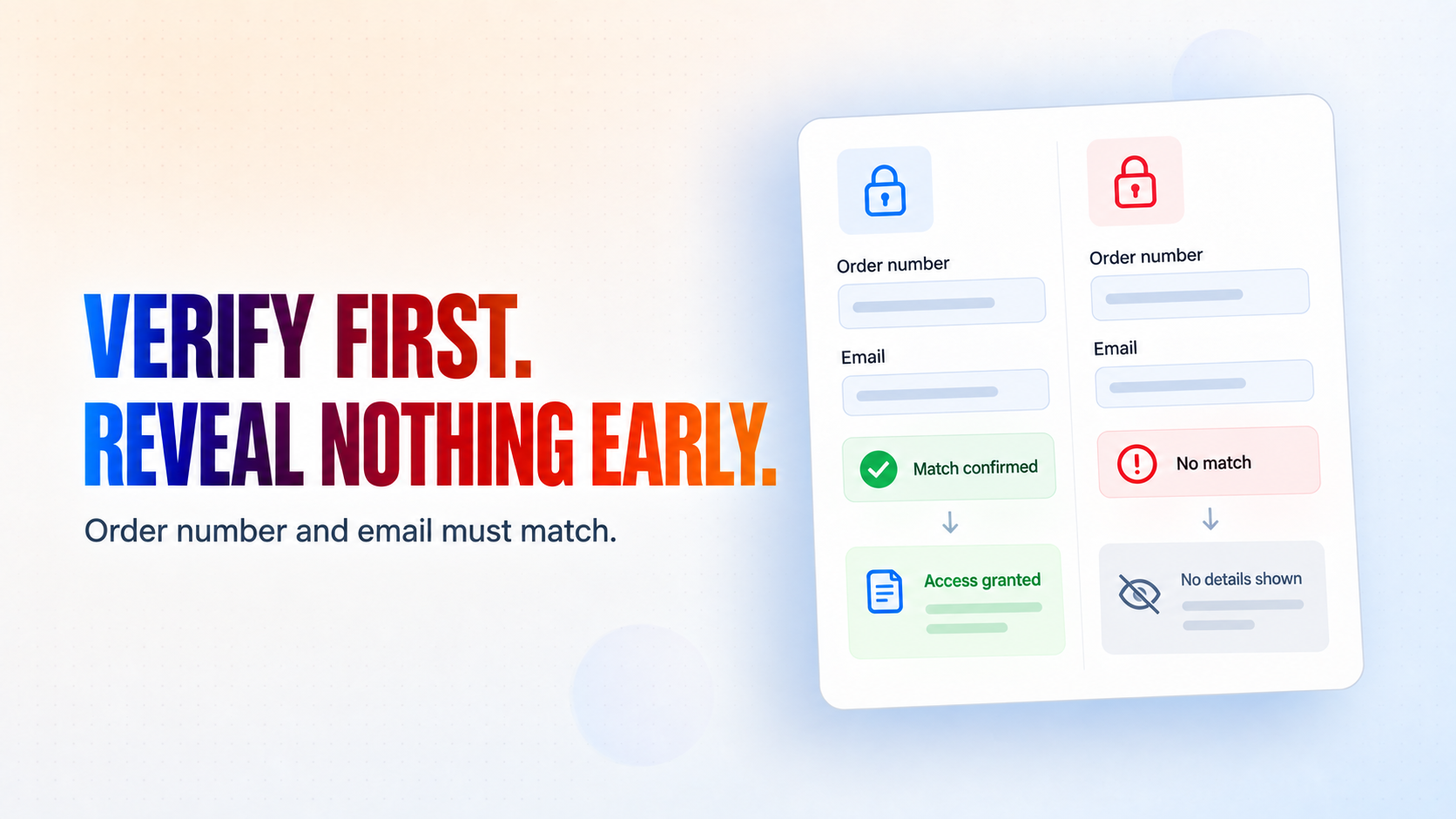
Verifies the customer against your own order records before revealing anything — the order number and the email address must match the same row
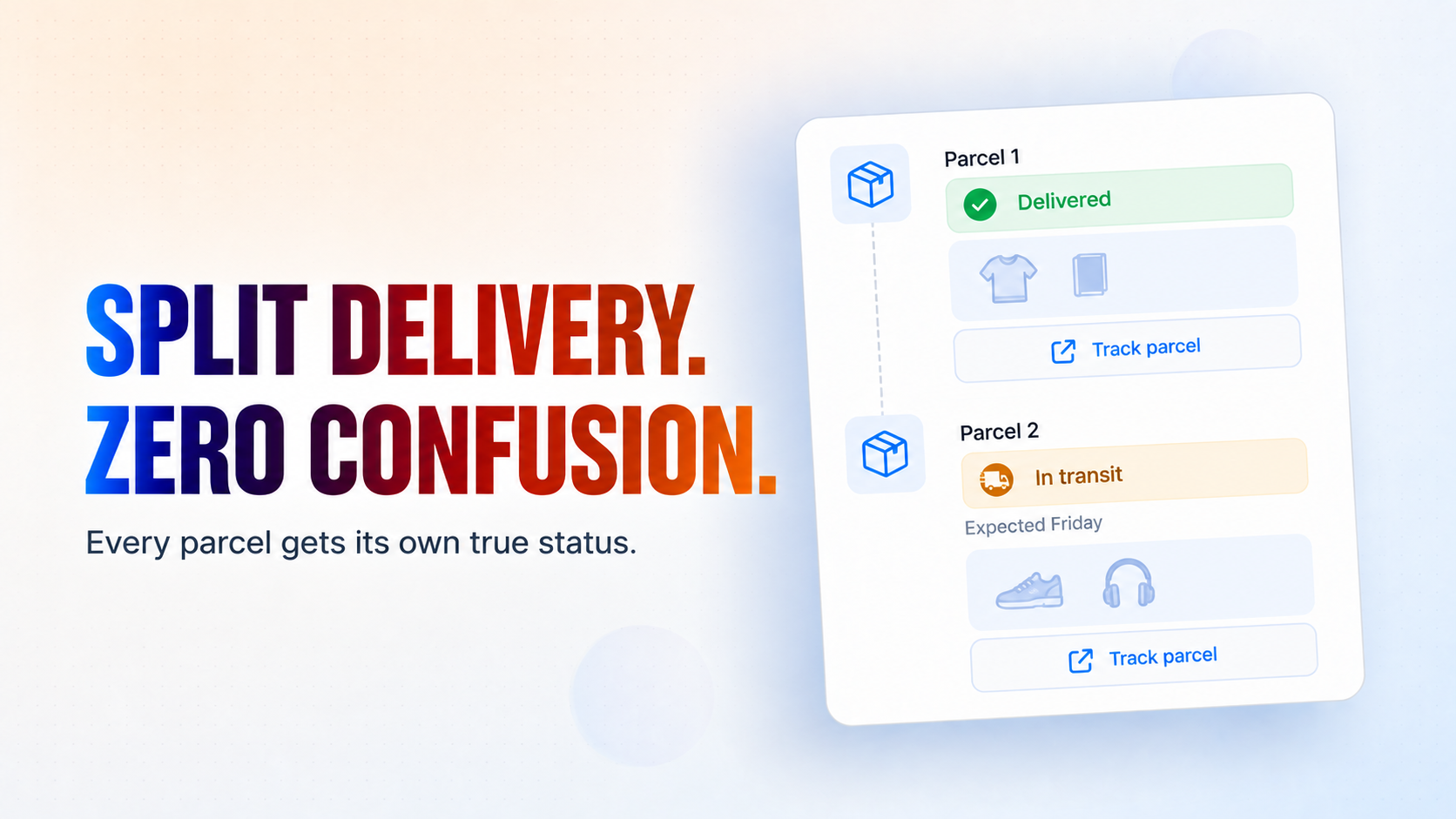
Describes split deliveries parcel by parcel, each with its own contents, status, expected date and carrier tracking link
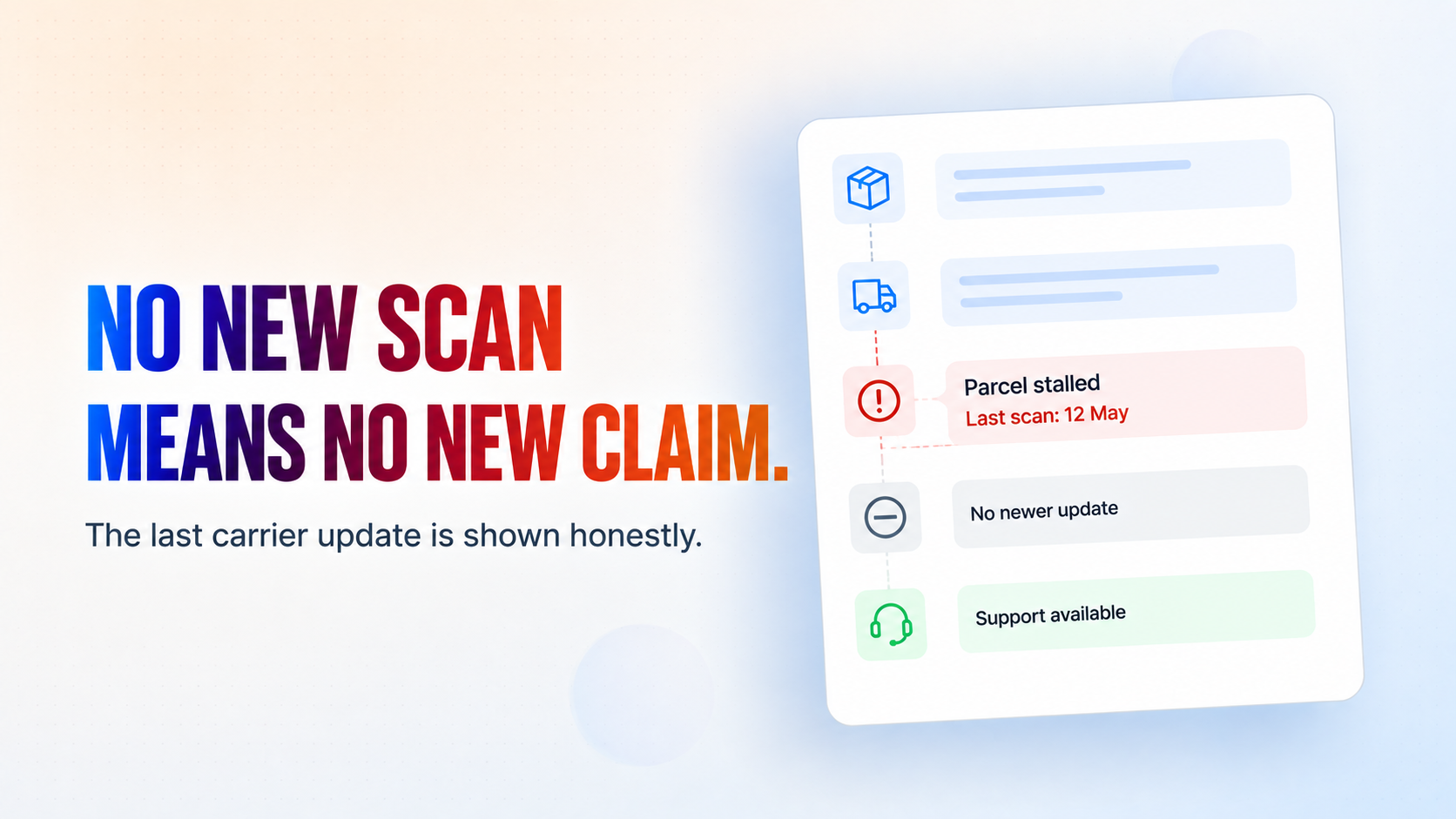
Reports a stalled parcel as stalled — it names the date of the last carrier scan instead of retelling it as progress
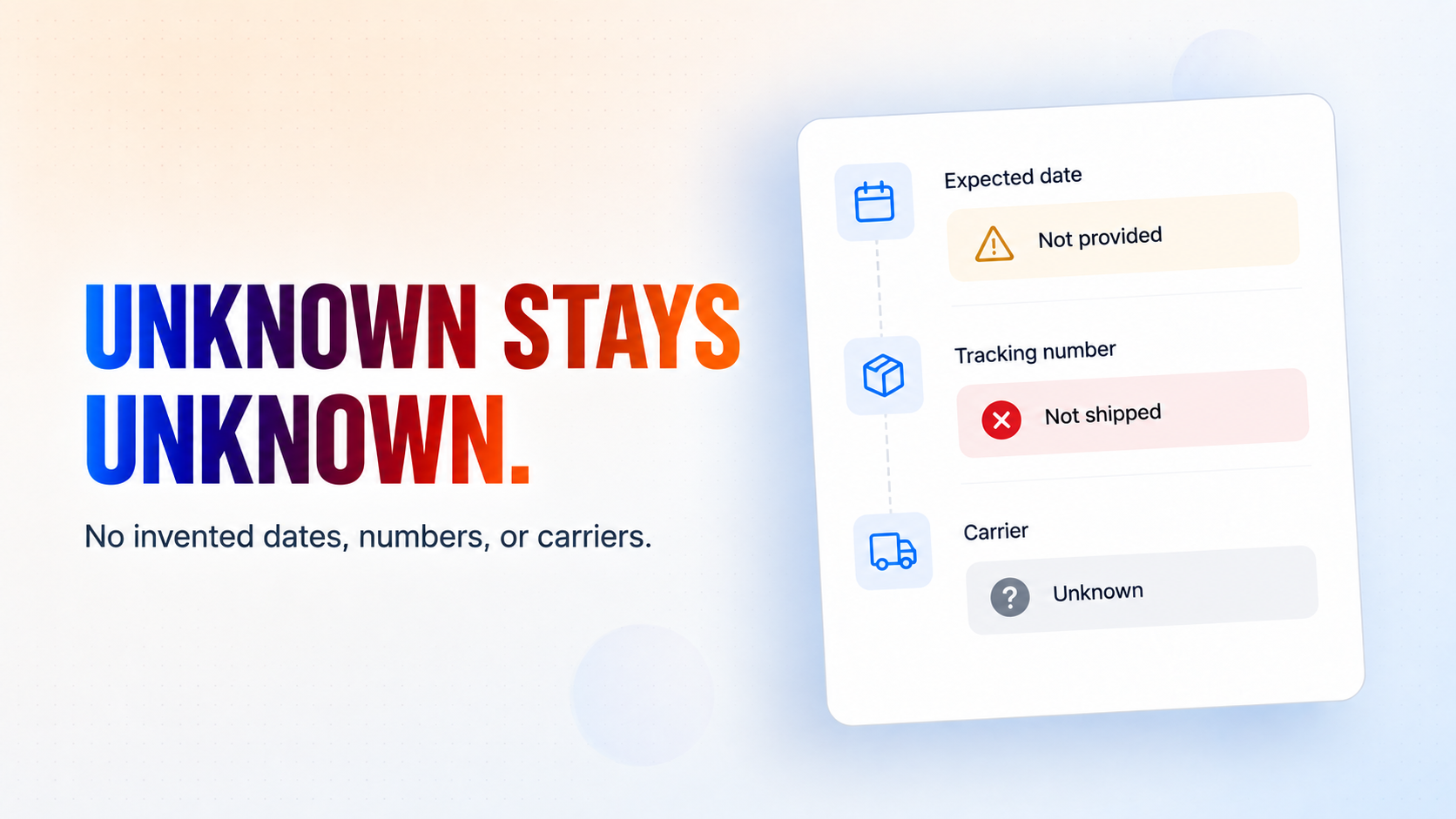
Never invents a delivery date, a tracking number or a carrier; when your records do not have it, it says so
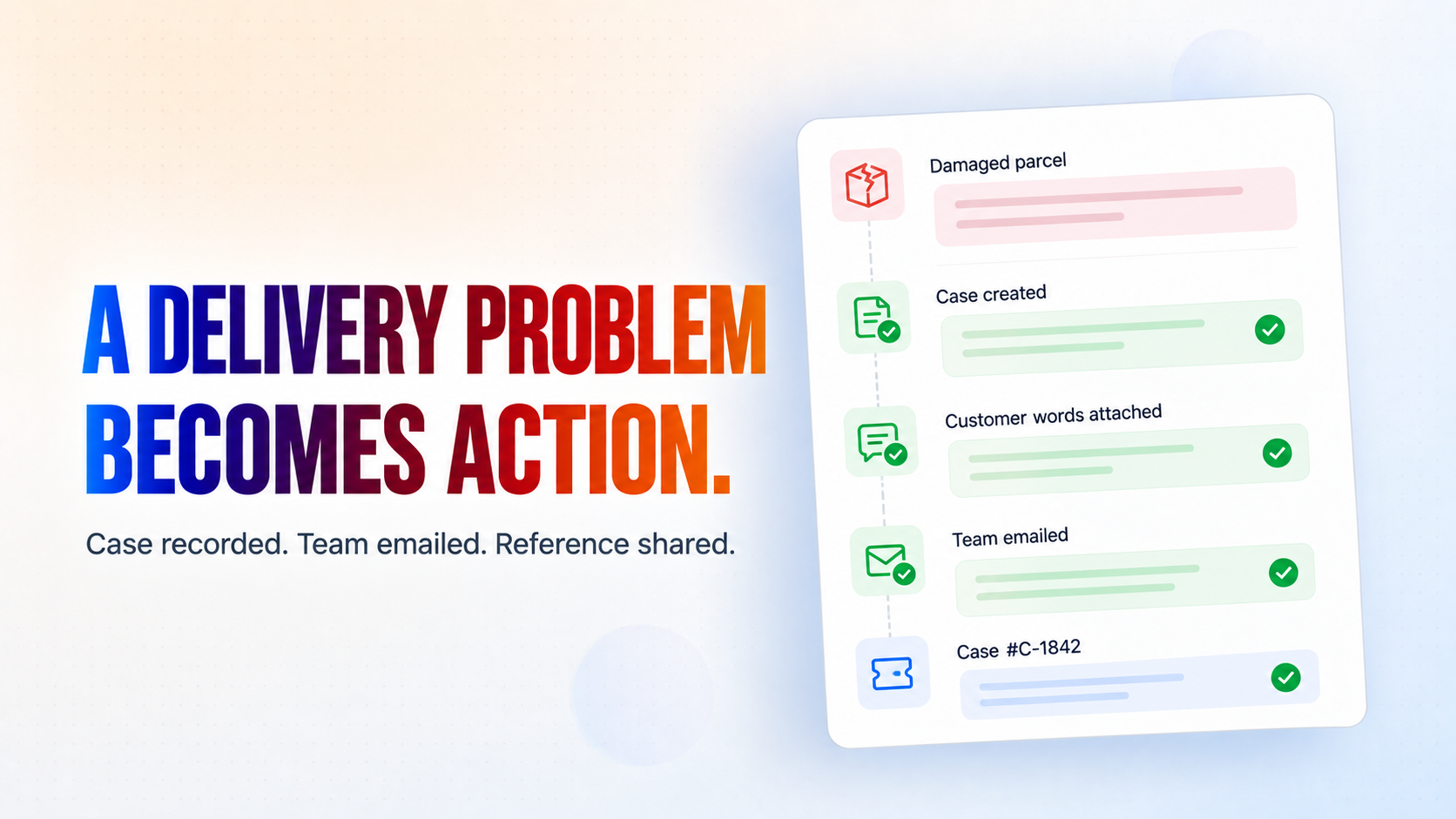
Opens a support case for late, missing, damaged, wrong-item, failed-delivery and wrong-address problems, and emails your team the customer's own words
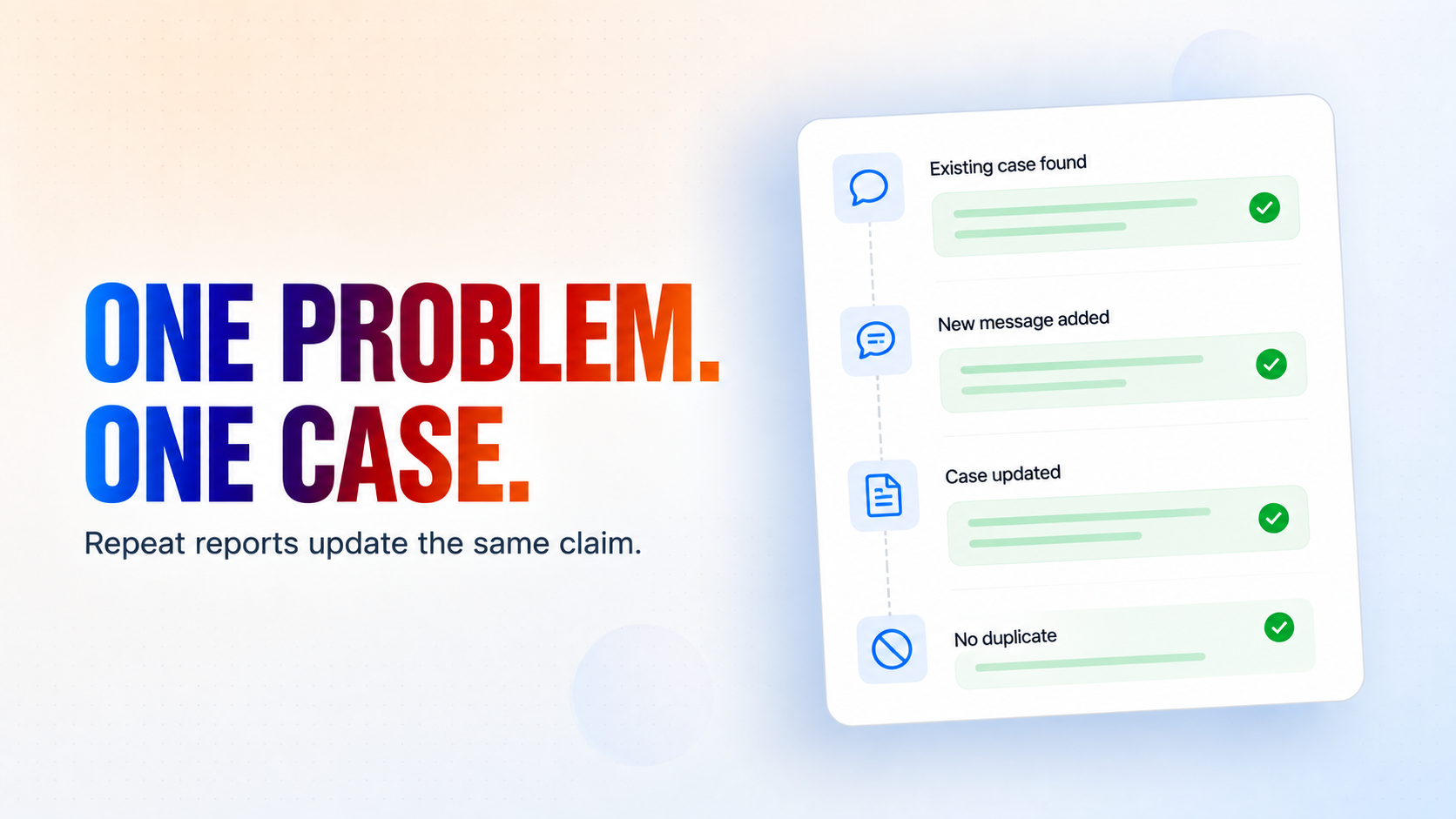
Prevents duplicate claims — reporting the same problem twice updates the one case instead of opening a second
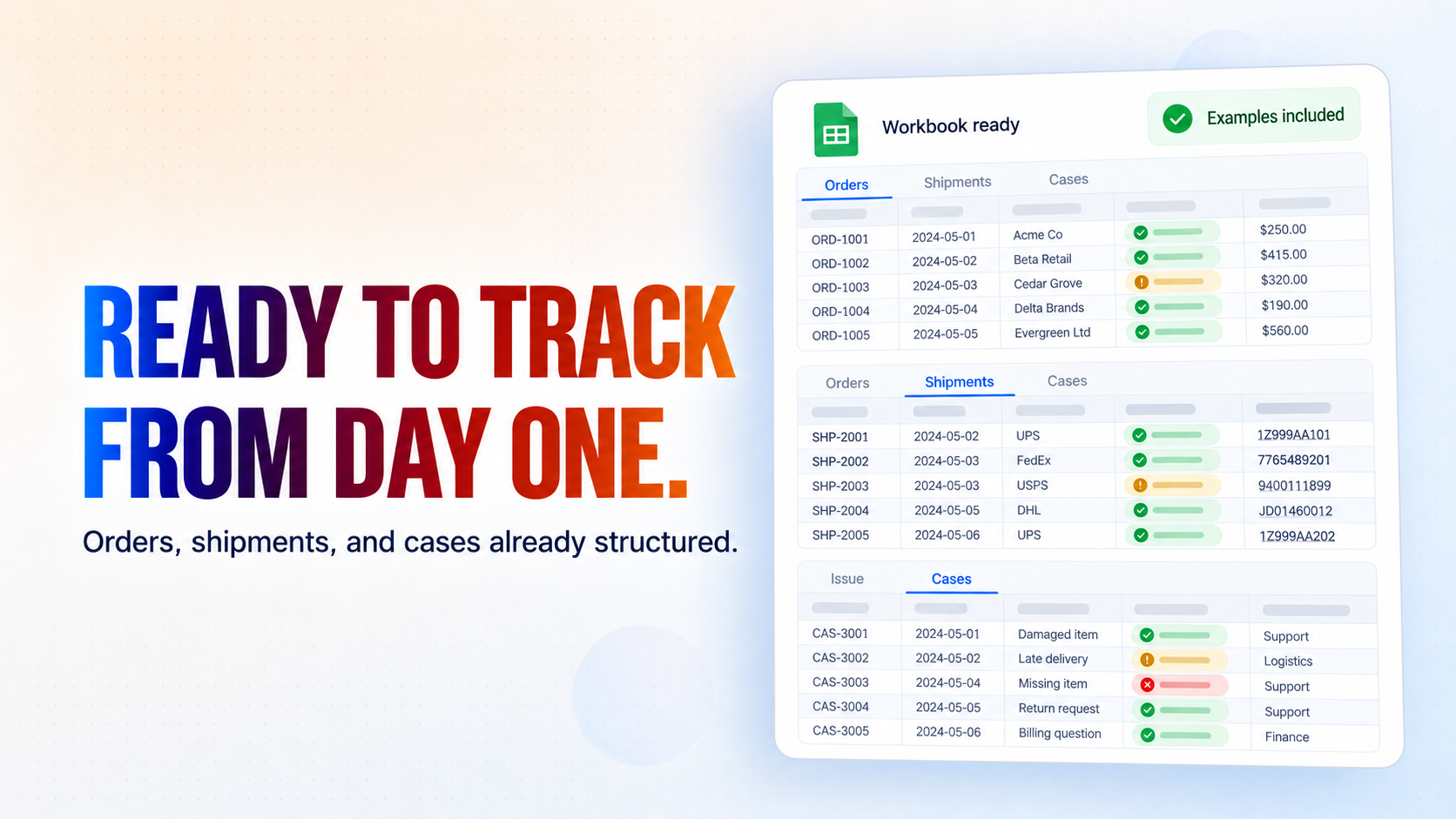
Builds its own Google Sheets workbook on the first run — Orders, Shipments and Cases, with worked examples already filled in
Never gives out a street address — the workbook deliberately stores only the delivery town and postcode
Installation
What setting this up involves.
Answer the install questions: your business name and a short description, your timezone, the name of the team that handles delivery problems and the email address their cases should go to, and your delivery policy — the delivery window you promise, when a parcel counts as late, and when you treat one as lost.
Connect Google Sheets and Gmail when prompted — two connections in total. Sheets holds your orders; Gmail is only how the agent tells your team about a case. The website chat itself needs no connection.
Open the installed "Order Tracking Setup" application and press Run, once. It builds a Google Sheets workbook named "<your business name> - Order Tracking Data" with three tabs — Orders, Shipments and Cases — each seeded with worked examples. Running it again is safe: it finds the workbook it made rather than creating a second.
Open that workbook and replace the three demo orders with your own. Orders is one row per order; Shipments is one row per parcel, joined to the order by order_id — so a split delivery is simply two rows sharing an order number. Paste your orders in, or sync them from your order system.
Add the chat widget to your website. The agent answers only there — no mailbox is involved, so it can never reply to anything except a customer who opened the chat.
Test it with one of your own orders before going live: ask where it is, giving the order number and the email address that order was placed with.
~5 min to launch
Free to start. Create your free account, then set it up.
Connect 2 tools, fill in a few details, and install it. No coding.
FUNCTION
Customer ServiceTAGS
Built by CogniAgent
Official template